↓ Download Deadweight
A native macOS utility
Deadweight
Edition 1.0 · MMXXVI
Find duplicates · Map your disk · Keep it all on your machine
Native, local-only, and quietly free.

The gigabytes
your Mac is hiding.

A native SwiftUI app built for everyday humans who need disk space back immediately, but want byte-for-byte certainty that they aren't trashing their original files.

Requires Apple Silicon · macOS 14 Sonoma or later

Space Doctor: your disk, drawn as a skyline each tower is a junk category · hover to inspect
DerivedData 33 GB.ARW raw shootsnode_modules.mov exportsiOS backups.wav stems.dmg installers~/Library/CachesOld DownloadsTrash 84 GB DerivedData 33 GB.ARW raw shootsnode_modules.mov exportsiOS backups.wav stems.dmg installers~/Library/CachesOld DownloadsTrash 84 GB

A functional desktop utility. No wrapper.

Written in Swift, for macOS, and nothing else. The scanning runs off the main thread, so the window keeps answering you while it works through a few hundred thousand files.

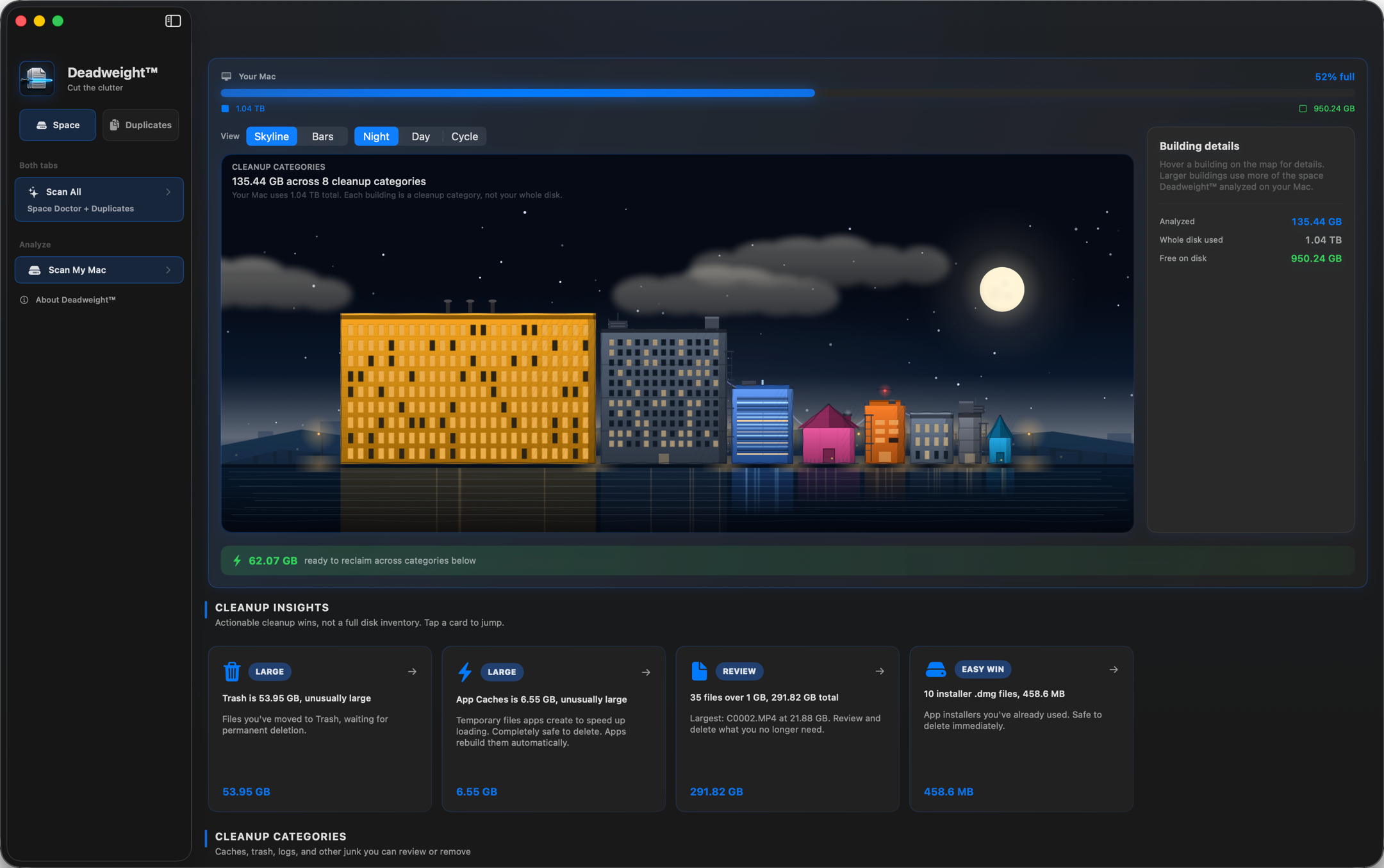
The Space Doctor window: scan buttons in the sidebar, the skyline map of the disk, a green bar showing 62.07 GB ready to reclaim, and a row of cleanup insight cards
01Point it at the whole Mac 02It flags the junk and names it 0362.07 GB ready to come back
Space DoctorOne scan and the guesswork is gone. Every pile of junk gets a name, a size, and a verdict on what is safe to clear. Removals go to the Trash, so you can change your mind later.
The home screenNo dashboard to learn. Point it at a single folder, or hit Scan My Mac and let it read the whole disk from top to bottom.
Deadweight home screen with the Scan My Mac button

The clutter you can’t see is the clutter that costs you.

Two kinds of weight pile up on a Mac: the build junk you never see, and the media that quietly copies itself. Deadweight goes after both.

i.

Everyday Users

The Downloads folder that became a junk drawer. Years of .dmg installers you opened once. The same vacation photos imported three times, an old iPhone backup, that 40 MB PDF saved in five places. Deadweight does the boring detective work, finding exact matches no matter what they’re named or where they’re hiding.

// the classic: a Downloads folder quietly holding 90+ GB
ii.

Developers

Xcode DerivedData. Simulator runtimes you forgot you installed. Archives from a version you shipped two years ago. A node_modules in every repo you ever cloned. Deadweight sorts them into categories you can clear without touching your projects or your configs. All of it rebuilds itself the next time you hit build.

// often 20–50 GB hiding in ~/Library/Developer
iii.

Photographers & Creators

You imported the same card twice. The raw .ARW files live in the shoot folder and the edit folder. There are six bounce-downs of a mix you kept re-exporting. Deadweight puts the identical copies side by side, and moves the spares to the Trash while the one you are working from stays exactly where it is.

// "track_4.wav: 11 identical copies found"

Three passes. Nothing deleted until the bytes match.

Most baseline search apps perform naive checks matching on filename and global size, which is a great way to lose work files that happen to share parameters. Deadweight demands proof first.

VERIFICATION
PIPELINE
size
sampled fingerprint
byte-for-byte compare
SIZE

Bucket by exact byte size

Every file is grouped by size. Anything with a unique size cannot possibly have a duplicate, so it’s dropped immediately. The cheapest filter runs first.

cost: near-zero · reads nothing
SAMPLED FINGERPRINT

Fingerprint the head, tail & interior

Surviving buckets get a fast fingerprint: the first 16 KB, the last 16 KB, and a few interior samples, hashed in parallel across your cores. Catches the obvious mismatches, including files that share a head and tail but differ in the middle, without reading whole files.

cost: light · partial reads
FULL CONTENT

Confirm with a streamed byte-for-byte compare

Only files that already collided get the expensive treatment: the survivors are streamed side by side in 1 MiB chunks and the actual bytes are compared, bailing at the first chunk that differs. The verdict comes from the bytes themselves, not from a hash of them, so there is no collision to gamble on. A match is a fact, not a statistical bet. (A file small enough that the head and tail reads already covered every byte of it is settled right there, because there is nothing left to read.)

cost: heavy · runs on a tiny set
The expensive work only ever touches files that already look identical, so it stays fast on enormous libraries while remaining safe enough to trust with your originals. Two files that are really one file under two names (a hardlink) are recognised before anything is read, and never offered to you as a duplicate or counted as space you can get back. Removals go to the Trash, recoverable, never a silent permanent wipe.
Privacy by architecture

Nothing
leaves your Mac.

A disk-cleaning app sees everything: your filenames, your folders, your life. Deadweight’s answer isn’t a privacy policy you have to believe. It’s the absence of any way to leak it. There is no backend, no account, no embedded analytics. The app simply makes no network connections at all.

  • No network code.Watch it in Little Snitch. There’s nothing to see, because there’s nothing to send.
  • No account, ever.Nothing to sign up for. Download, open, scan.
  • No analytics or crash SDKs.No Firebase, no Sentry, no telemetry. Your usage is yours.
  • Lives entirely on your disk.Every scan, result and decision happens on-device and stays there.
  • Your results are never written down.No paths, no filenames, no lists. Six UI preferences get saved, and the Privacy Policy names all six. Everything else dies with the process.
  • Even this page is clean.No cookies, no analytics, no fonts pulled from Google. It loads nothing from a third party. View source and count for yourself.
0
bytes that ever leave your machine
Outbound requests0
Accounts required0
Trackers bundled0
Price$0
Outbound traffic · always flat

Opening a free app from outside the App Store.

Deadweight is given away directly, not sold through the App Store, so macOS will pause on first launch and ask you to confirm. It’s the same prompt every independent app triggers, and it’s a two-minute, one-time thing. Here’s the exact path for macOS Sequoia and Tahoe.

You do this once. After the first approved launch, Deadweight opens like any other app with no prompts, no repeats, ever.

WHAT YOU’LL SEE ON FIRST LAUNCH

Deadweight app icon
“Deadweight” Not Opened

Apple could not verify “Deadweight” is free of malware that may harm your Mac or compromise your privacy.

Move to TrashDone
Step A

First launch, start to finish

// Download to first open, exactly as macOS shows it.
Step B

Granting Full Disk Access

// The app walks you there and confirms when access lands.
Step A

Let macOS open it

1
Install it first

Open Deadweight.dmg, then drag the Deadweight icon onto the Applications folder shown in the window.

2
Double-click Deadweight

The “could not verify” message appears (shown above). Normal for any indie app, it doesn’t mean anything is wrong. Click Done, never Move to Trash (even though it’s the highlighted one).

3
Open Privacy & Security
System Settings → Privacy & Security
4
Scroll down & click Open Anyway

Near the bottom: “Deadweight was blocked…”. Click Open Anyway.

5
Confirm once more

A final prompt appears with an Open Anyway button. Click it, then authenticate with Touch ID or your admin password. Deadweight launches, and won’t ask again.

Step B

Grant Full Disk Access

·
Why it asks

macOS shields your .Trash and parts of ~/Library even from apps you’ve opened. Without access, Space Doctor can’t even see your biggest wins. It only ever reads to measure. Nothing is deleted without your confirmation.

1
Let the app take you there

Deadweight shows a short guide with an Open System Settings button that lands on the right pane. Or walk there yourself:

System Settings → Privacy & Security → Full Disk Access
2
Add Deadweight

Click +, authenticate, choose Deadweight in Applications. (Already listed? Just switch it on.)

3
Toggle on & relaunch

Flip the switch on. macOS asks whether to quit the app now: click Quit & Reopen. Deadweight returns with access granted, and Scan My Mac now reaches the Trash and the system categories.

Note for Tahoe / Sequoia: the old Control-click → Open shortcut no longer bypasses this, approval lives in Privacy & Security now. If the “Open Anyway” button is missing, double-click Deadweight once more to bring it back (it expires about an hour after the block). On rare occasions macOS shows “damaged and can’t be opened” instead, this is the download quarantine flag, not a corrupt file. Open Terminal and run xattr -cr /Applications/Deadweight.app once, then launch normally.

The price
Free.

The whole app. No trial, no “pro” tier, no upsell, no catch.
Built it for myself, releasing it for you.

↓ Download Deadweight 1.0

If Deadweight pulled its weight, you can . Entirely optional, deeply appreciated.

The questions a careful person asks first.

Is it safe to let it delete my files?

Yes, by design. Removals move files to the Trash, where they stay recoverable. Two actions are permanent, and both sit behind an explicit confirmation that says so: emptying the Trash from inside the app, and deleting a Time Machine local snapshot. Everything else can be restored from the Trash. And a “duplicate” is only ever shown after a full-content byte-for-byte comparison, so it really is byte-for-byte identical, not just same-name-same-size.

Why didn’t it find a duplicate I know I have?

Most likely one of two defaults. Deadweight only considers files of 1 MB or larger, so small duplicates are ignored until you lower the minimum size in the app. It also skips dependency folders like node_modules, .git and DerivedData, because copies in there are churn rather than clutter and walking them is slow. Both are adjustable: drop the minimum size from the toolbar, and tick the dependencies box when you scan a single folder.

Will the space it reports actually come back?

Usually, with one honest caveat. macOS can store two identical files as a single shared copy on disk (APFS clones, which is what Finder’s Duplicate and cp -c create), so trashing one of them may free less than the figure shown. Hardlinks are detected and never counted as reclaimable at all. The number is an estimate, and it is deliberately conservative about what it promises. macOS can also take up to a day to hand back space held by local snapshots.

Why the “cannot be verified” warning?

Because Deadweight is distributed directly rather than through the App Store, and I’m an independent developer who hasn’t paid for Apple’s notarization service. The warning is macOS being cautious about any outside app, not a sign of trouble. Follow Step A once and it never appears again.

Is it free because you’re harvesting my data?

No. It’s free because I built it for myself and it costs me nothing to share. There’s no account, no analytics, and no network code. The app makes zero outbound connections, which you can confirm yourself with a tool like Little Snitch. If you’d like to support it, there’s an optional tip jar.

Why isn’t it open source?

It’s closed-source freeware, common for indie Mac utilities. You’re welcome to use it free of charge; I’ve simply chosen to keep the source private. The privacy guarantees don’t depend on reading the code: they come from the app having no network behaviour at all, which is observable from the outside.

What are the requirements?

An Apple Silicon Mac (M1 or later) running macOS 14 (Sonoma) or later, including macOS 26 (Tahoe). It’s a native Apple Silicon build and does not run on Intel Macs. Full Disk Access is optional but lets it read the Trash and system-cache categories.